Saturday, March 5, 2011

MSDTC on server 'servername' is unavailable

This error occurs when the “Distributed Transaction Coordinator” service is not running. To start a distributed transactions with TransactionScope object, the windows service “Distributed Transaction Coordinator” should be running.
To fix the problem just start the service “Distributed Transaction Coordinator” using Windows Service manager.
Here are the detailed steps for starting the service
  1. Click on Ctrl+R then type services.msc in run command then click OK,Service Manager will display.
  2. Scroll through the list and identify the service “Distributed Transaction Coordinator”
  3. Right on the service and choose “Start”


Friday, February 25, 2011

Binding Data to Data Grid in WPF


In this post we are going to learn how to bind data to DataGrid in WPF(Windows Presentation Foundation)  
Create new project named as DataGridSample 


To show a basic data grid, just drop a DataGrid control to your view and bind the ItemsSource to a data table
The DataGrid provides a feature called AutoGenerateColumns that automatically generates column according to the columns of your data datatable. It generates the following types of columns:
  • TextBox columns for string values
  • CheckBox columns for boolean values
  • ComboBox columns for enumerable values
  • Hyperlink columns for Uri values
MainWindow.xaml

<Grid>
      <DataGrid AutoGenerateColumns="True" Height="225" HorizontalAlignment="Left" Margin="28,21,0,0" Name="dataGrid1" VerticalAlignment="Top" Width="408" />
</Grid>

MainWindow.xaml.cs

        SqlConnection cn = new SqlConnection("Data     Source=.;database=Practice;trusted_connection=true");
        public MainWindow()
        {
            InitializeComponent();
        }
        private void Window_Loaded(object sender, RoutedEventArgs e)
        {
            cn.Open();
            SqlDataAdapter da = new SqlDataAdapter("Select * from Employee", cn);
            DataSet ds = new DataSet();
            da.Fill(ds, "Employee");
            dataGrid1.ItemsSource = ds.Tables["Employee"].DefaultView;
        }
Result Window


Alternatively you can define your columns manually by setting the AutoGenerateColumns property to False.

Here we can add following type of columns

DataGridCheckBoxColumn
DataGridComboBoxColumn
DataGridHyperlinkColumn               
DataGridTemplateColumn
DataGridTextColumn

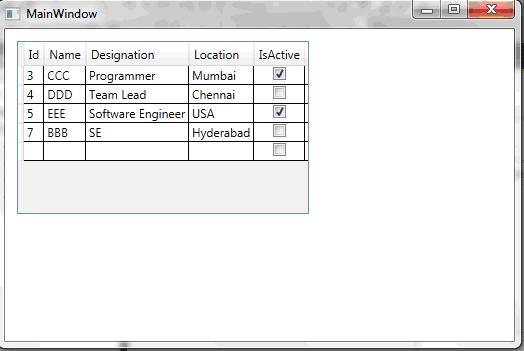
MainWindow.xaml

<DataGrid AutoGenerateColumns="False" Height="173" HorizontalAlignment="Left" Margin="12,12,0,0" Name="dataGrid1" VerticalAlignment="Top" Width="292" ItemsSource="{Binding}">
<DataGrid.Columns>
<DataGridTextColumn Binding="{Binding EmpId}" Header="Id" />
<DataGridTextColumn Binding="{Binding EmpName}" Header="Name" />
<DataGridTextColumn Binding="{Binding Designation}"    Header="Designation" />
<DataGridTextColumn Binding="{Binding Location}" Header="Location" />
<DataGridCheckBoxColumn Binding="{Binding IsActive}" Header="IsActive" />
 </DataGrid.Columns>
 </DataGrid>


Result Window


How to use OpenFileDialog in WPF


The OpenFileDialog is used to browse files on a machine. 

The OpenFileDialog class defined in Microsoft.Win32.OpenFileDialog namespace represents an OpenFileDialog control in WPF. 

Let's add a TextBox and a Button control to a XAML page. The window looks like this.


When you click the Browse button, we will browse text files and set the TextBox.Text to the selected file name.
 
<TextBox Height="25" HorizontalAlignment="Left" Margin="41,104,0,0" Name="txtFileUpload" VerticalAlignment="Top" Width="405" Grid.RowSpan="2" />

<Button Content="Browse" Height="26" HorizontalAlignment="Left" Margin="448,103,0,0" Name="btnBrowse" VerticalAlignment="Top" Width="75" Click="btnBrowse_Click" />
 
The code listed in Listing 1 creates an OpenFileDialog, set its default extension and filter properties and calls ShowDialog method that displays the dialog. Once the OpenFileDialog is displayed, you can use it to browse files. Once file is selected, the FileName property of the OpenFileDialog is set to the selected file name. This code sets the selected file name as a TextBox.Text property.
 
private void btnBrowse_Click(object sender, RoutedEventArgs e)
        {
            OpenFileDialog fdlg = new OpenFileDialog();
            fdlg.Title = "File Upload";
            fdlg.Filter = "Xml File|*.xml";
            //fdlg.FilterIndex = 2;
            fdlg.RestoreDirectory = true;
            Nullable<bool> result = fdlg.ShowDialog();
            if (result==true)
            {
                txtFileUpload.Text = fdlg.FileName;
            }
        }


Wednesday, February 23, 2011

Joins in Linq to Sql

Linq to Sql given us excellent feature of joins, the two common joins are the inner join (or just join in LINQ) and the left join. Inner join returns all the rows that are matched in both tables, left join returns all rows from the left table, even if there are no matches in the right table
Sample pieces for inner join and left join
Inner Join
var empDetails = from emp in objEmp.Employees
                         join dept in objEmp.Depts on emp.Deptid equals dept.DeptId
                         select new
                         {
                             emp.EmpName,
                             emp.Designation,
                             emp.Location,
                             dept.DeptName
                         };

Left Join
var empDetails = from emp in objEmp.Employees
                join dept in objEmp.Depts on emp.Deptid equals dept.DeptId into empdet
                         from de in empdet.DefaultIfEmpty()
                         select new
                         {
                             emp.EmpName,
                             emp.Designation,
                             emp.Location,
                             de.DeptName
                         };

Pro LINQ: Language Integrated Query in C# 2008 (Windows.Net) 

Sunday, February 20, 2011

Adding new Record to Existing XML File using C-Sharp

1)     Creating Employee class with four properties EmpId, DeptId, EmpName, Location
2)     Reading an XML file into a DataTable
3)     Adding new record to above created Data table
4)     Creating xml file using Data table
namespace AddnewRecordtoExistinXMlFile
{
    public class Employee
    {
        public int EmpId
        {
            get;
            set;
        }
        public int DeptId
        {
            get;
            set;
        }
        public string  EmpName
        {
            get;
            set;
        }
        public string Location
        {
            get;
            set;
        }
     }

   class Program
    {
                
      // create object for Employee class
        Employee objEmp = new Employee();

        // <summary>
        /// methods for Creating an XML file from DataTable
        /// </summary>

        public void CreateXMlDoc()
        {
           
            DataTable dtEmployee = ReadXML("CreateEmployee.xml");

            // assigning values to Employee Object
            objEmp.EmpId = 2;
            objEmp.DeptId = 1;
            objEmp.EmpName = "XYZ";
            objEmp.Location = "Hyderabad";
         
     // adding Employee Object values to datarow.
            DataRow dr = dtEmployee.NewRow();
            dr["EmpId"] = objEmp.EmpId;
            dr["DeptId"] = objEmp.DeptId;
            dr["EmpName"] = objEmp.EmpName;
            dr["Location"] = objEmp.Location;
            dtEmployee.Rows.Add(dr);

            dtEmployee.WriteXml("CreateEmployee.xml");
         }


        // <summary>
        /// method for reading an XML file into a DataTable
        /// </summary>
        /// <param name="file">name (and path) of the XML file</param>
        /// <returns></returns>
        public DataTable ReadXML(string file)
        {
            //create the DataTable that will hold the data
            DataTable table = new DataTable("Employee");
            //create the table with the appropriate column names
            table.Columns.Add("EmpId", typeof(int));
            table.Columns.Add("DeptId", typeof(int));
            table.Columns.Add("TraderName", typeof(string));
            table.Columns.Add("EmpName", typeof(string));
            try
            {
                //open the file using a Stream

if (File.Exists(file))
{
   using (Stream stream = new FileStream(file, FileMode.Open,
   FileAccess.Read))
   {
   //use ReadXml to read the XML stream
   table.ReadXml(stream);
  //return the results
  }
}
 return table;
}
            catch (Exception ex)
            {
                return table;
            }
        }
        static void Main(string[] args)
        {
            Program p=new Program();
            p.PrepareXMlDoc();
            Console.ReadKey();
        }
    }


}

Note : the above scenario will work if and only if Exiting Xmlfile records and new record have the same structure, otherwise it will override with new record, and the existing records in the Xmlfile will be lost.

Sample Xml file
  <?xml version="1.0" standalone="yes" ?>
<DocumentElement>
<Employee>
  <EmpId>1</ EmpId>
  <DeptId>1</ DeptId>
  <EmpName>John</ EmpName>
  < Location>Hyderabad</ Location>
   </ Employee >
  < Employee >
  < EmpId >2</ EmpId >
  < DeptId >2</ DeptId >
  < EmpName>Harry</EmpName>
  <Location>Bangalore</ Location>
</ Employee >
</DocumentElement>